
UX Design
UX Design
UI/UX Figma Evaluation Plug-in
UI/UX Figma Evaluation Plug-in
An AI-powered Figma plugin that evaluates designs against UX laws and best practices without taking creative control from designers.
2 months
2 months
2026
2026
Figma
Figma
Designer (me), Developer
Designer (me), Developer
An AI critique partner for UX designers.
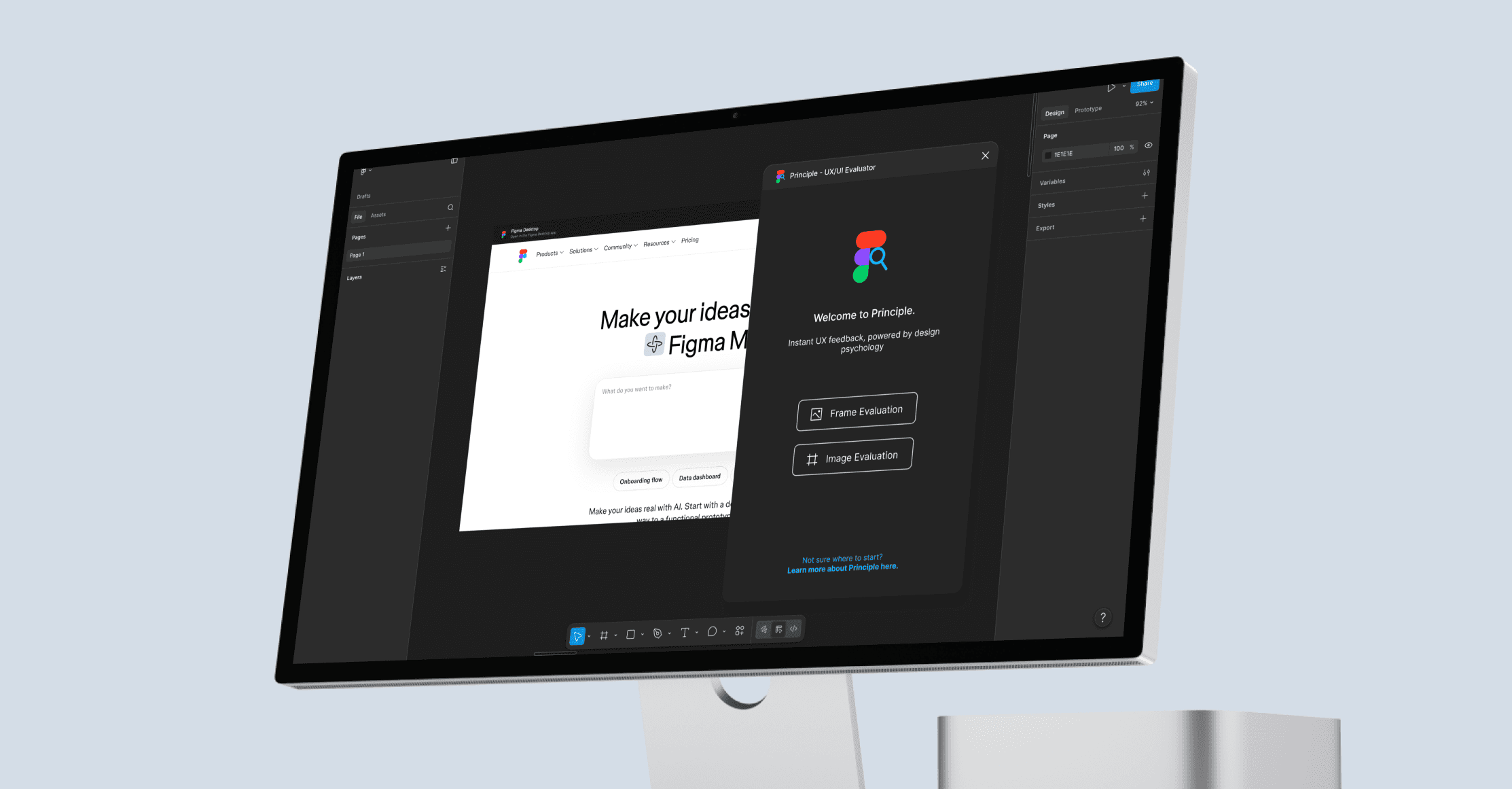
Principle is an AI-powered Figma plugin that helps designers evaluate frames, images, and URLs against UX laws, usability principles, and best practices. Instead of generating designs or replacing creative decision-making, Principle gives designers structured feedback they can use to improve their own work.
Challenge
Challenge
Designers need fast UX feedback, but have limited time.
Designers need fast UX feedback, but have limited time.
Designers often rely on feedback too late in the process. UX reviews, accessibility checks, and best-practice critiques usually happen after a design is already developed or nearly finished.
I wanted to explore how AI could help designers catch issues earlier without disrupting their workflow.
Water usage is largely invisible. While users care about sustainability, they lack feedback at the point of action.
Existing solutions either track data passively with little behavior change or present too much information, requiring effort to interpret. This revealed an opportunity to design for awareness in the moment, not analysis after the fact.
Designers often rely on feedback too late in the process. UX reviews, accessibility checks, and best-practice critiques usually happen after a design is already developed or nearly finished.
I wanted to explore how AI could help designers catch issues earlier without disrupting their workflow.
Insight
Insight
Designers didn’t need another platform, they needed feedback inside Figma.
The first concept was a standalone web tool where designers uploaded exported frames for review. After talking with designers, I realized this added too much friction.
Designers did not need another platform. They needed feedback inside the tool they were already using.
The first concept was a standalone web tool where designers uploaded exported frames for review. After talking with designers, I realized this added too much friction.
Designers did not need another platform. They needed feedback inside the tool they were already using.

Solution
Solution
Principle brings AI-powered UX evaluation directly into the design workflow.
Designers can evaluate selected Figma frames, upload screenshots, or review URLs without leaving Figma. The plugin then provides UX feedback, category scores, severity levels, and visual highlights to help designers understand what to improve.
Designers can evaluate selected Figma frames, upload screenshots, or review URLs without leaving Figma. The plugin then provides UX feedback, category scores, severity levels, and visual highlights to help designers understand what to improve.
Key Features
Key Features
Frame + Image Evaluation
Frame + Image Evaluation
Designers can review work in progress or existing interfaces.
Designers can evaluate selected Figma frames, upload screenshots, or review URLs without leaving Figma. The plugin then provides UX feedback, category scores, severity levels, and visual highlights to help designers understand what to improve.
Designers can evaluate selected Figma frames, upload screenshots, or review URLs without leaving Figma. The plugin then provides UX feedback, category scores, severity levels, and visual highlights to help designers understand what to improve.
UX Review
UX Review
Feedback is organized by category, score, and severity.
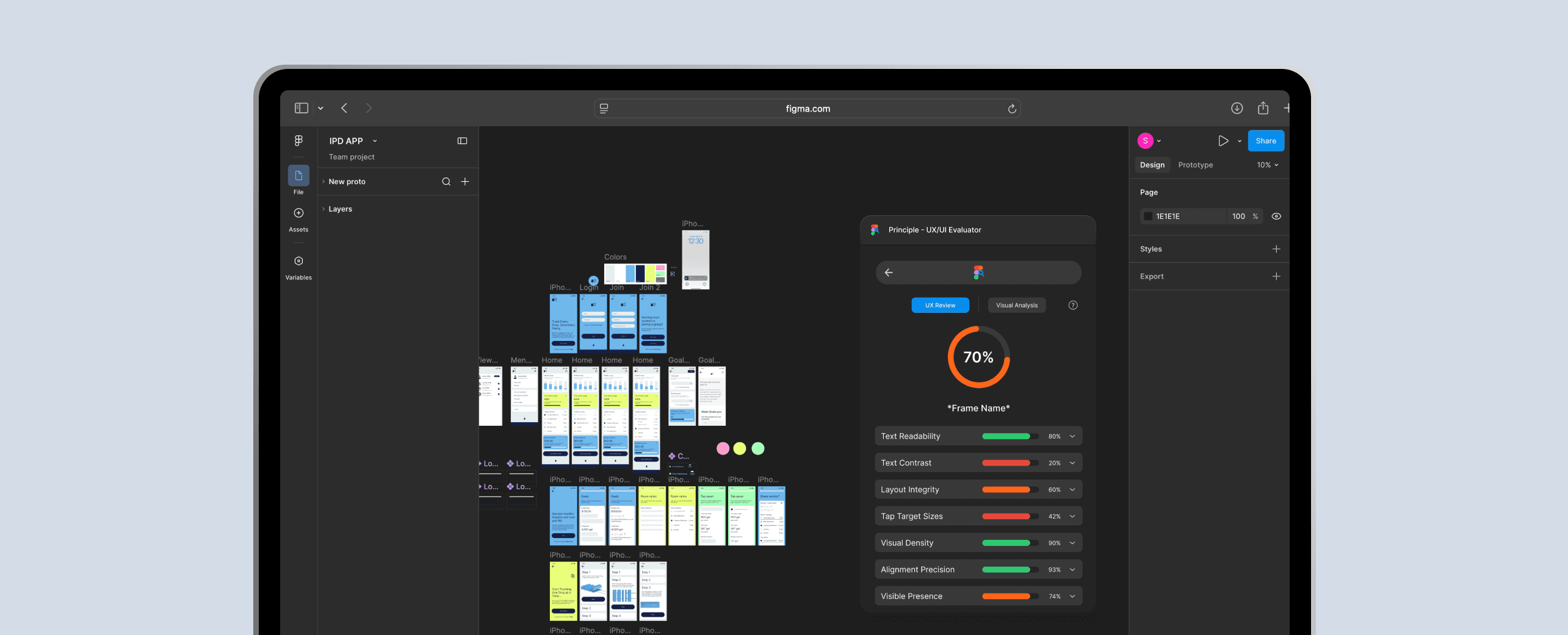
The UX Review gives designers a quick overview of what is working, what needs attention, and which issues should be prioritized first.
The UX Review gives designers a quick overview of what is working, what needs attention, and which issues should be prioritized first.
Visual Analysis
Visual Analysis
Problem areas are highlighted directly on the design.
Visual Analysis helps designers connect feedback to specific areas of the interface. Designers can also ask follow-up questions through AI chat to clarify, challenge, or better understand the results.
Visual Analysis helps designers connect feedback to specific areas of the interface. Designers can also ask follow-up questions through AI chat to clarify, challenge, or better understand the results.
Design Approach
Design Approach
The plugin needed to feel simple, focused and native to Figma.
Because plugin space is limited, I kept the interface minimal and easy to navigate. I used familiar Figma patterns so the tool felt like part of the workspace rather than a separate product layered on top of it.
Because plugin space is limited, I kept the interface minimal and easy to navigate. I used familiar Figma patterns so the tool felt like part of the workspace rather than a separate product layered on top of it.
Design Approach
Design Approach
Make UI/UX feedback faster and easier to access during the design process without leaving Figma.
Use AI to support designers without replacing their creativity or decision-making.
Help designers identify usability issues through UX laws, best practices, and severity-based grading and feedback.
Make UI/UX feedback faster and easier to access during the design process without leaving Figma.
Use AI to support designers without replacing their creativity or decision-making.
Help designers identify usability issues through UX laws, best practices, and severity-based grading and feedback.
Information Design
Information Design
Designing for a Figma plugin created a challenge around space, clarity, and speed. Because the plugin needed to live inside a designer’s existing workspace, I had to keep the interface limited while still making the feedback useful and easy to understand. To avoid slowing down the process, I organized the experience around a small number of screens and clear evaluation categories. Designs can be reviewed as either selected Figma frames or uploaded images, giving users flexibility depending on where they are in the process.
Designing for a Figma plugin created a challenge around space, clarity, and speed. Because the plugin needed to live inside a designer’s existing workspace, I had to keep the interface limited while still making the feedback useful and easy to understand. To avoid slowing down the process, I organized the experience around a small number of screens and clear evaluation categories. Designs can be reviewed as either selected Figma frames or uploaded images, giving users flexibility depending on where they are in the process.
Planning & App Structure
Planning & App Structure
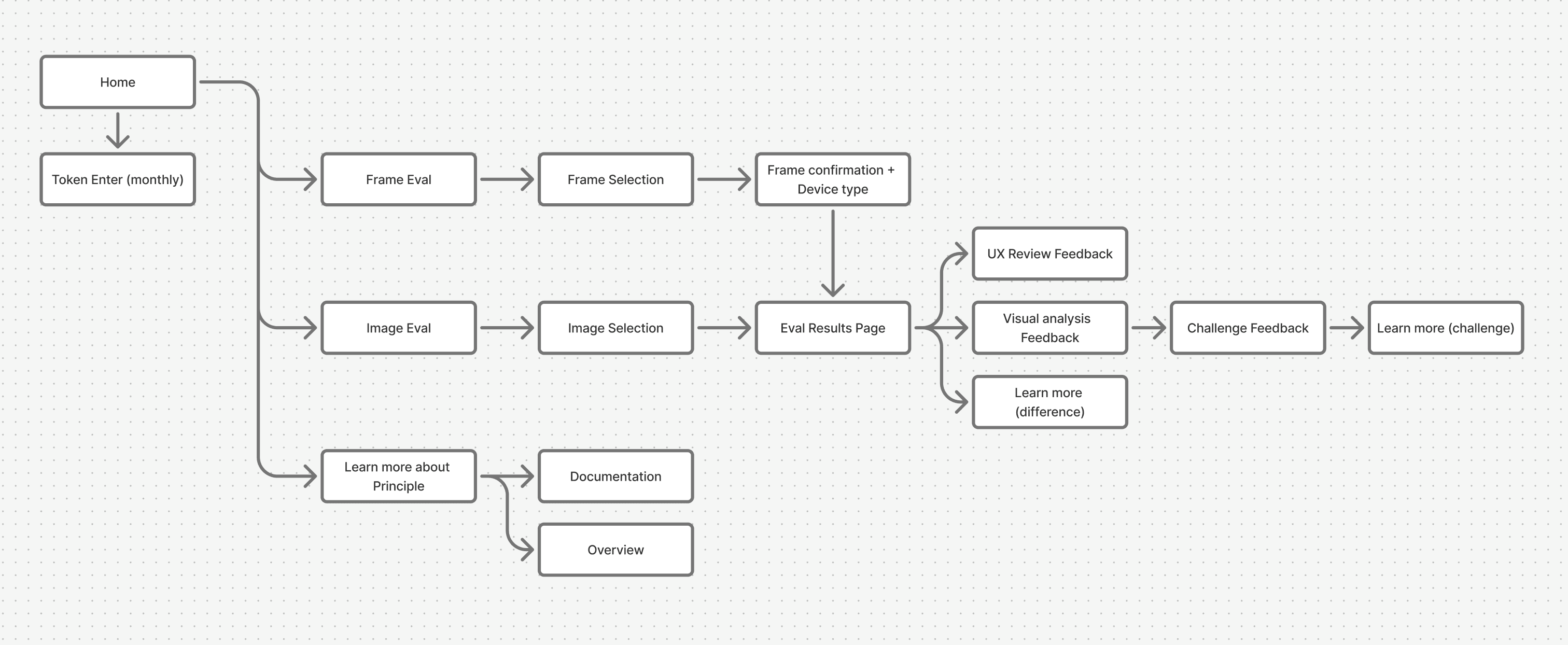
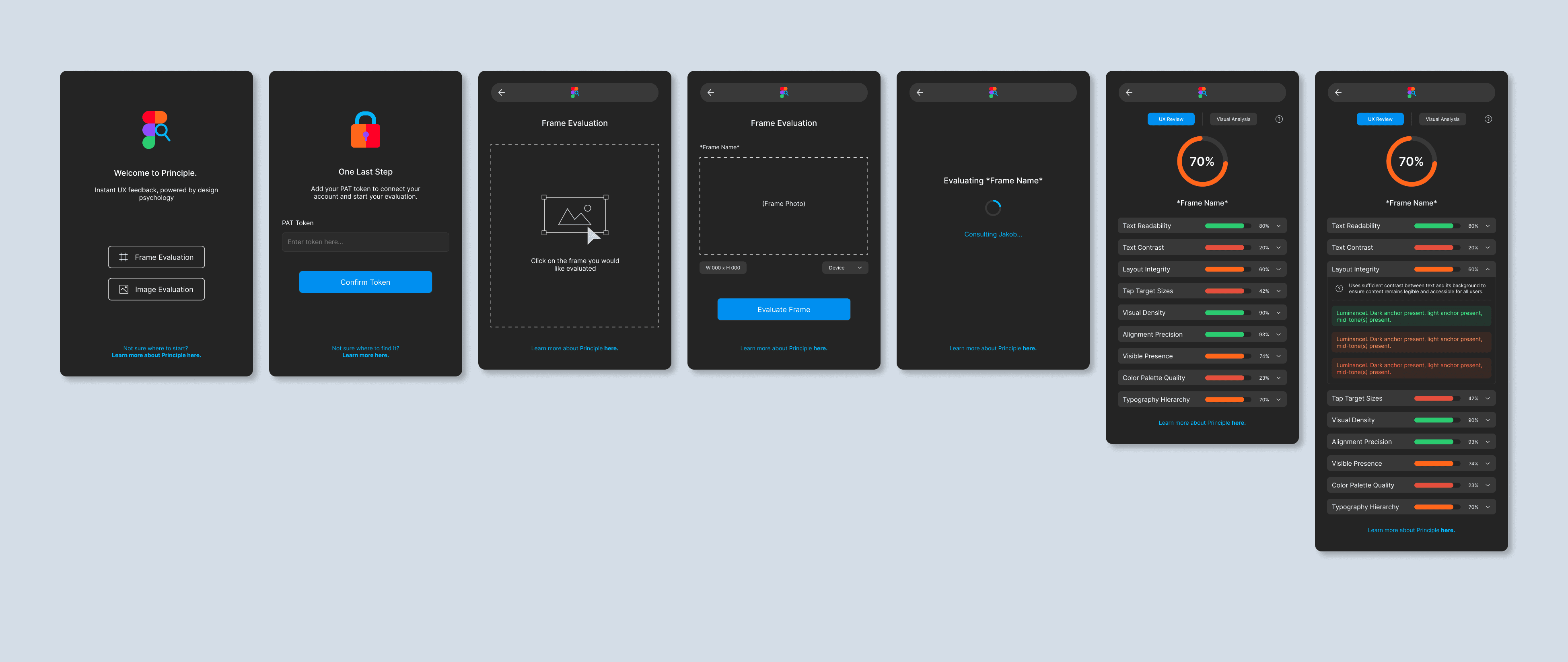
The plugin has two main paths: Frame Evaluation and Image Evaluation. Users can either select a Figma frame or upload an image, screenshot, or URL. After evaluation, results are split into UX Review and Visual Analysis. UX Review gives an overview of scores and severity-based feedback, while Visual Analysis highlights specific areas and lets users challenge feedback through an AI chat. The flow also includes a PAT token step, which would need to be completed about once a month.
The plugin has two main paths: Frame Evaluation and Image Evaluation. Users can either select a Figma frame or upload an image, screenshot, or URL. After evaluation, results are split into UX Review and Visual Analysis. UX Review gives an overview of scores and severity-based feedback, while Visual Analysis highlights specific areas and lets users challenge feedback through an AI chat. The flow also includes a PAT token step, which would need to be completed about once a month.
Shaping the Experience
Shaping the Experience
After identifying the main use cases and adjusting the user flow, I moved into wireframing the plugin experience. My goal was to keep the process quick and easy to follow while still giving designers enough information to understand their results. Since the plugin had limited space inside Figma, I focused on clear steps, simple navigation, and feedback that was organized enough to be useful without overwhelming the user.
After identifying the main use cases and adjusting the user flow, I moved into wireframing the plugin experience. My goal was to keep the process quick and easy to follow while still giving designers enough information to understand their results. Since the plugin had limited space inside Figma, I focused on clear steps, simple navigation, and feedback that was organized enough to be useful without overwhelming the user.
Wireframes
Wireframes
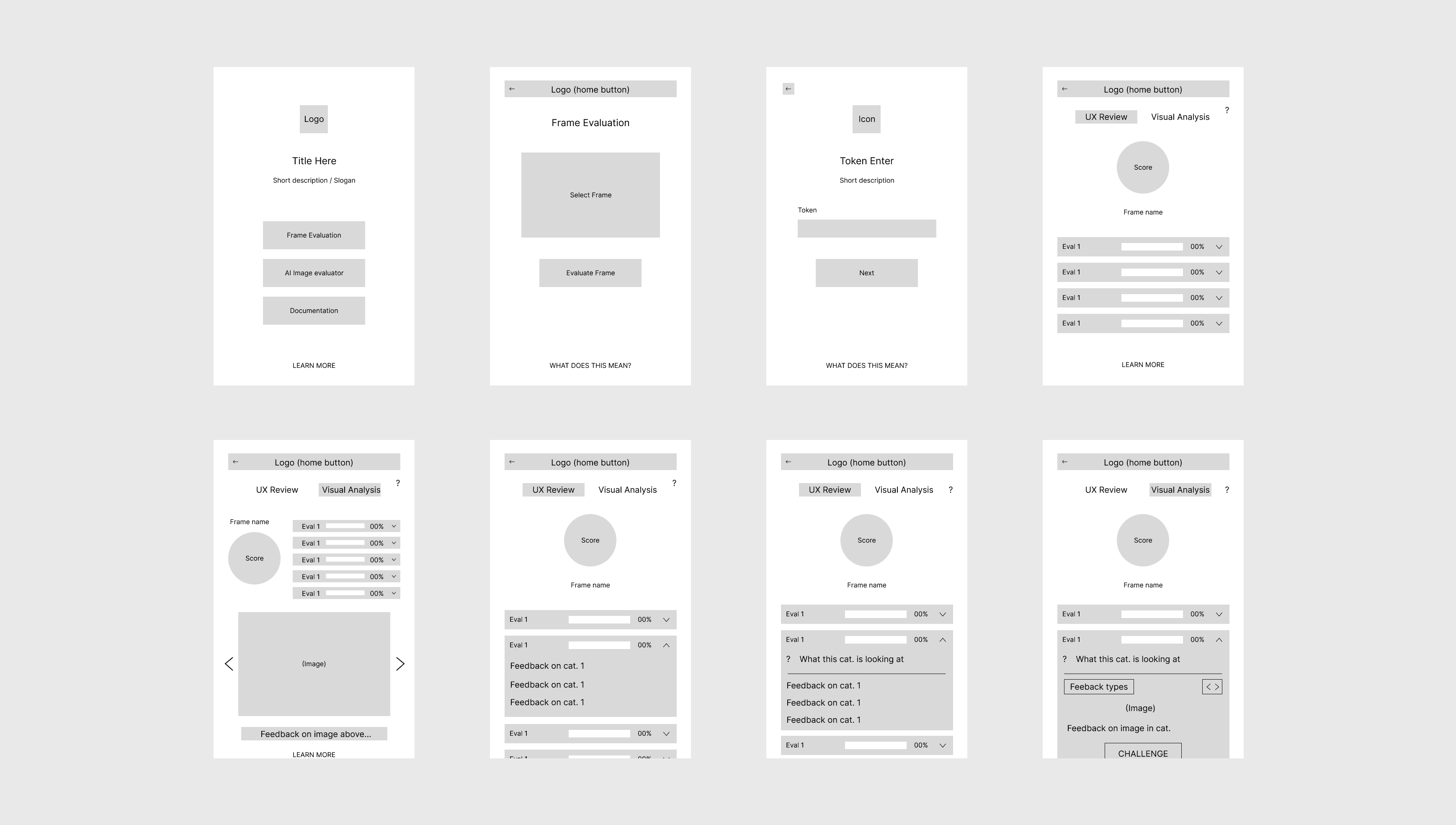
Early wireframes focused on how to separate the UX Review and Visual Analysis results into clear, easy-to-read sections. I explored how to display scores, feedback, and severity levels in a limited plugin space while also leaving room for the AI chat within each Visual Analysis section.
Early wireframes focused on how to separate the UX Review and Visual Analysis results into clear, easy-to-read sections. I explored how to display scores, feedback, and severity levels in a limited plugin space while also leaving room for the AI chat within each Visual Analysis section.
UI
UI
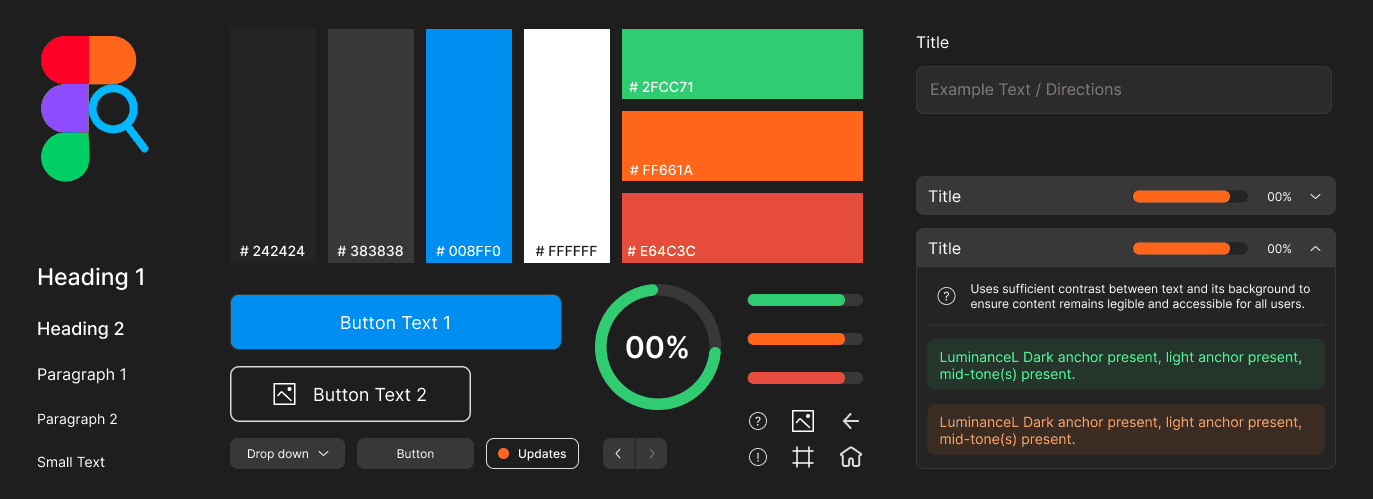
After finalizing the wireframes and making sure the main requirements were met, I moved into creating a design system, component library and clickable prototype. My goal was to keep the interface visually aligned with Figma’s existing UI so the plugin felt like a natural part of the workspace. By using familiar patterns, spacing, and interactions, the design could reduce cognitive load and make the experience feel more intuitive, which helps users feel more comfortable and confident using the tool.
After finalizing the wireframes and making sure the main requirements were met, I moved into creating a design system, component library and clickable prototype. My goal was to keep the interface visually aligned with Figma’s existing UI so the plugin felt like a natural part of the workspace. By using familiar patterns, spacing, and interactions, the design could reduce cognitive load and make the experience feel more intuitive, which helps users feel more comfortable and confident using the tool.
Outcome
Outcome
The final plugin creates a faster, more integrated way for designers to get UX feedback without leaving their workflow. By combining in-file evaluation, severity-based feedback, and visual AI analysis, the tool helps designers identify usability issues, understand their design decisions, and improve their work while staying in control of the creative process.
The final plugin creates a faster, more integrated way for designers to get UX feedback without leaving their workflow. By combining in-file evaluation, severity-based feedback, and visual AI analysis, the tool helps designers identify usability issues, understand their design decisions, and improve their work while staying in control of the creative process.
Experience in Action
Experience in Action
Key Features
Key Features
The plugin was designed around quick, in-workflow feedback that helps designers evaluate their work without leaving Figma. Each feature focuses on making UX feedback easier to access, easier to understand, and easier to act on during the design process.
The plugin was designed around quick, in-workflow feedback that helps designers evaluate their work without leaving Figma. Each feature focuses on making UX feedback easier to access, easier to understand, and easier to act on during the design process.
Frame and Image Evaluation
Frame and Image Evaluation
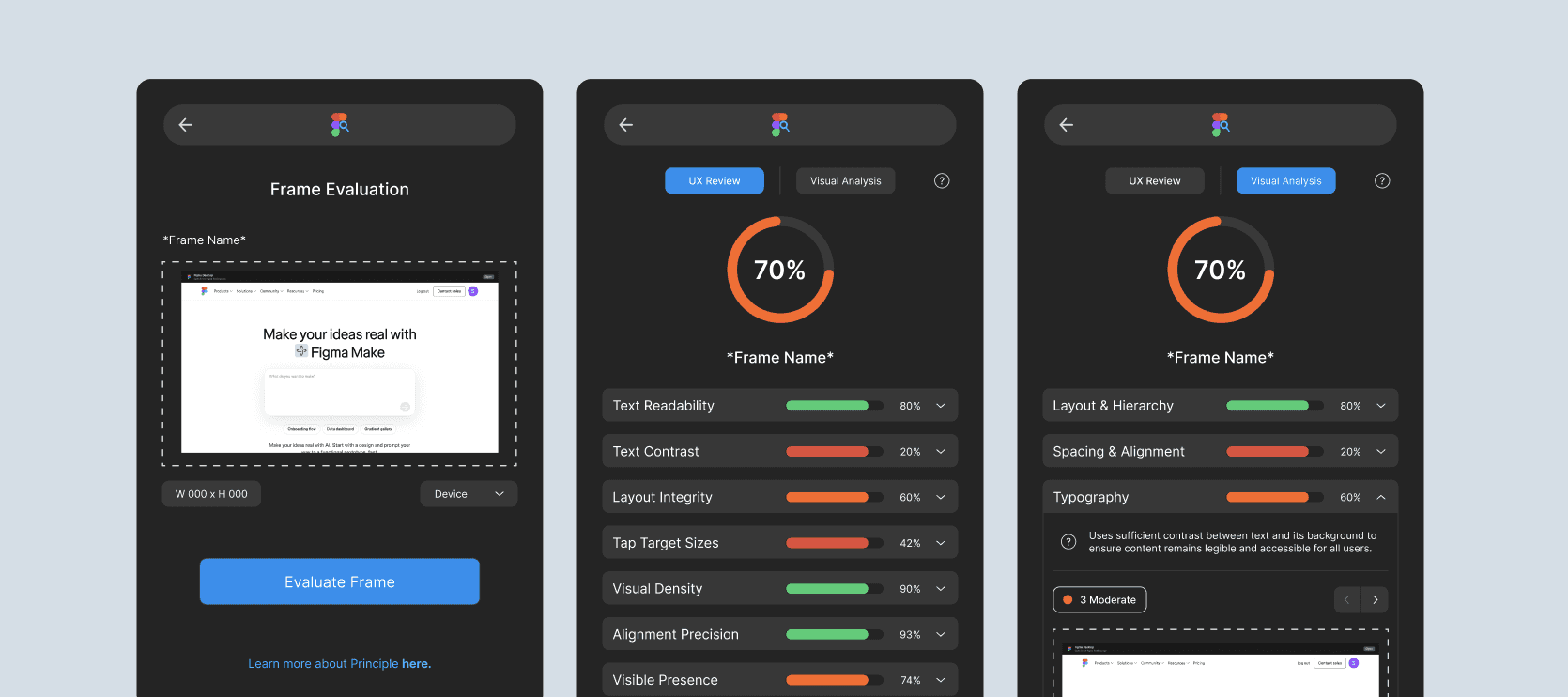
Users can evaluate selected Figma frames or upload images, screenshots, and URLs. This supports both in-progress design work and redesign projects where designers need to review existing websites.
Users can evaluate selected Figma frames or upload images, screenshots, and URLs. This supports both in-progress design work and redesign projects where designers need to review existing websites.
UX Review Results
UX Review Results
The UX Review gives designers a clear overview of category scores and severity-based feedback, helping them quickly understand what is working and what needs improvement.
The UX Review gives designers a clear overview of category scores and severity-based feedback, helping them quickly understand what is working and what needs improvement.
Visual Analysis with AI Chat
The Visual Analysis highlights specific areas within a design and allows users to challenge feedback through an AI chat. This gives designers a chance to explain their decisions, add missing context, and better understand the AI’s evaluation.
The Visual Analysis highlights specific areas within a design and allows users to challenge feedback through an AI chat. This gives designers a chance to explain their decisions, add missing context, and better understand the AI’s evaluation.
Product Summary
Product Summary
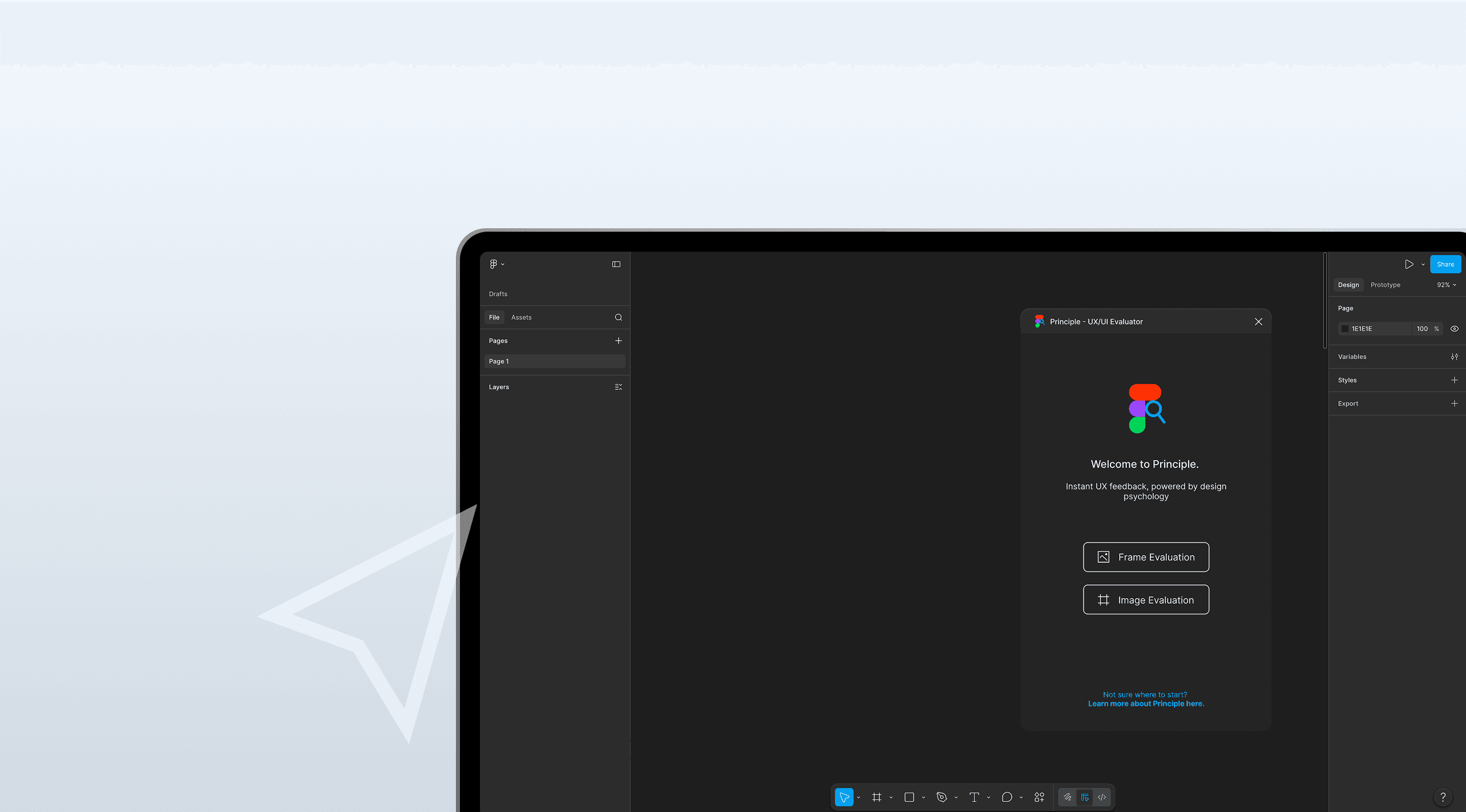
Principle is an AI-powered Figma plugin that helps designers evaluate their work against UX laws, usability principles, and best practices. It solves the problem of designers needing quick, useful feedback during the design process without having to leave Figma, manually reference UX guidelines, or wait for a formal review. By supporting both selected Figma frames and uploaded images or URLs, Principle can be used for in-progress designs as well as redesign projects.
Principle is an AI-powered Figma plugin that helps designers evaluate their work against UX laws, usability principles, and best practices. It solves the problem of designers needing quick, useful feedback during the design process without having to leave Figma, manually reference UX guidelines, or wait for a formal review. By supporting both selected Figma frames and uploaded images or URLs, Principle can be used for in-progress designs as well as redesign projects.
Principle uses AI as a design support tool rather than a replacement for the designer. Instead of generating designs for users, it provides scores, severity-based feedback, visual analysis, and AI-powered explanations that help designers understand where their work can improve. The goal is to help designers build stronger, more usable products while keeping creativity, decision-making, and design ownership in their hands.
Principle uses AI as a design support tool rather than a replacement for the designer. Instead of generating designs for users, it provides scores, severity-based feedback, visual analysis, and AI-powered explanations that help designers understand where their work can improve. The goal is to help designers build stronger, more usable products while keeping creativity, decision-making, and design ownership in their hands.
Next Steps
Next Steps

I worked closely with a software developer to bring Principle from concept into a real Figma plugin. Through that process, I learned a lot about designing within both development constraints and Figma plugin limitations, especially when it came to space, functionality, and workflow.
Overall I’m really happy with how the product came together and I’m excited to see how designers use it in action.
Although there was extensive iteration and evolution during the beginning stages of production, we were able to get more feedback at the showcase. With this feedback, there were a few things I would like to go back and work on in my free time. I would like to go back and work on transitions and animations between screens to make the experience flow a bit better. I would also like to explore other ways to get younger household members invloved, whether this be with games or other challenges.
Overall I am very happy with how this product turned out. It was exciting starting out with nothing but a problem and then taking it all the way to a working product showcase.